
Uninstalling an app may also remove its associated data, such as settings or recordings created with that app.
If you're encountering any issue with an app please contact our support team before uninstalling!
Take me to...
- Uninstall via the Overwolf Dock
- Uninstall via the Overwolf Appstore
- Uninstall via Windows Add/Remove Programs
Uninstall via the Overwolf Dock
This is the quickest method:
Open the Overwolf dock by clicking the taskbar icon.
Right-click the app you want to remove.
Select Uninstall.

Uninstall via the Overwolf Appstore
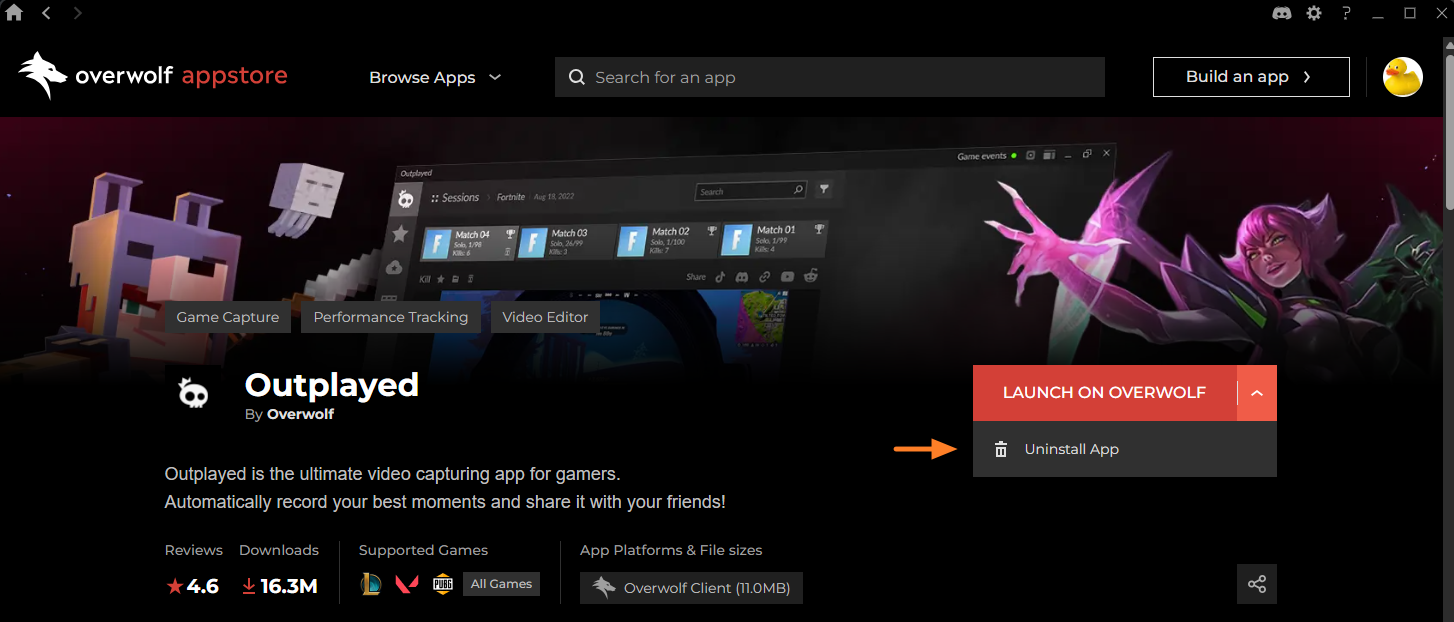
Open the Overwolf Appstore.
Search for the app you would like to uninstall.
Click on the arrow.
Choose Uninstall.
Uninstall via Windows Add/Remove Programs
Open the Add or remove programs screen in Windows.
Find the Overwolf app you want to remove and click Uninstall/Change.
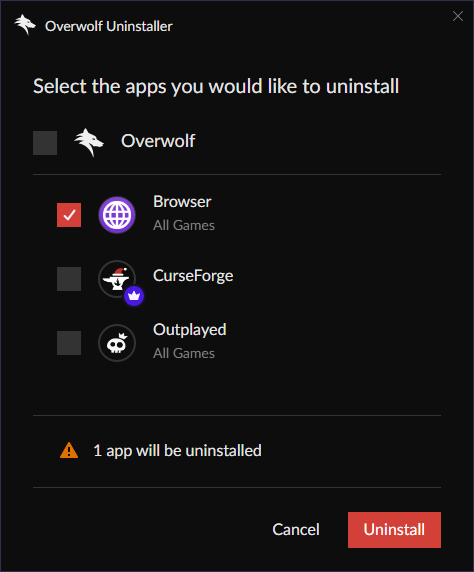
A window will appear allowing you to uninstall the selected app and optionally any other Overwolf apps.
Click Uninstall to proceed.
Important:
Selecting Overwolf in this list will uninstall the entire Overwolf platform, including all installed apps.
If you need help reinstalling or have run into issues, please open a support ticket.